

Working with Outcomes
Outcomes represent the result or state reached after an action. They are shown as boxes on the flow and can be reused across different flows within the same project.
New outcomes are created as you build a flow by adding actions. They can remain unnamed while you are working, or be defined and reused across the project.
Defining an outcome
A new outcome initially appears without a name, with Double click to edit displayed in the outcome box.
Double-click the outcome to open Edit Outcome and add the information you need:
- Outcome name — a short name of up to 30 characters.
- Description — up to 200 characters describing the outcome and how it will be experienced.
- System outcome / impact — up to 200 characters describing the effect on the system or solution.
- Reference text — a label or identifier of up to 20 characters, such as a wireframe reference.
- Reference link — an optional link to the associated reference, up to 256 characters.
Select Save when finished.
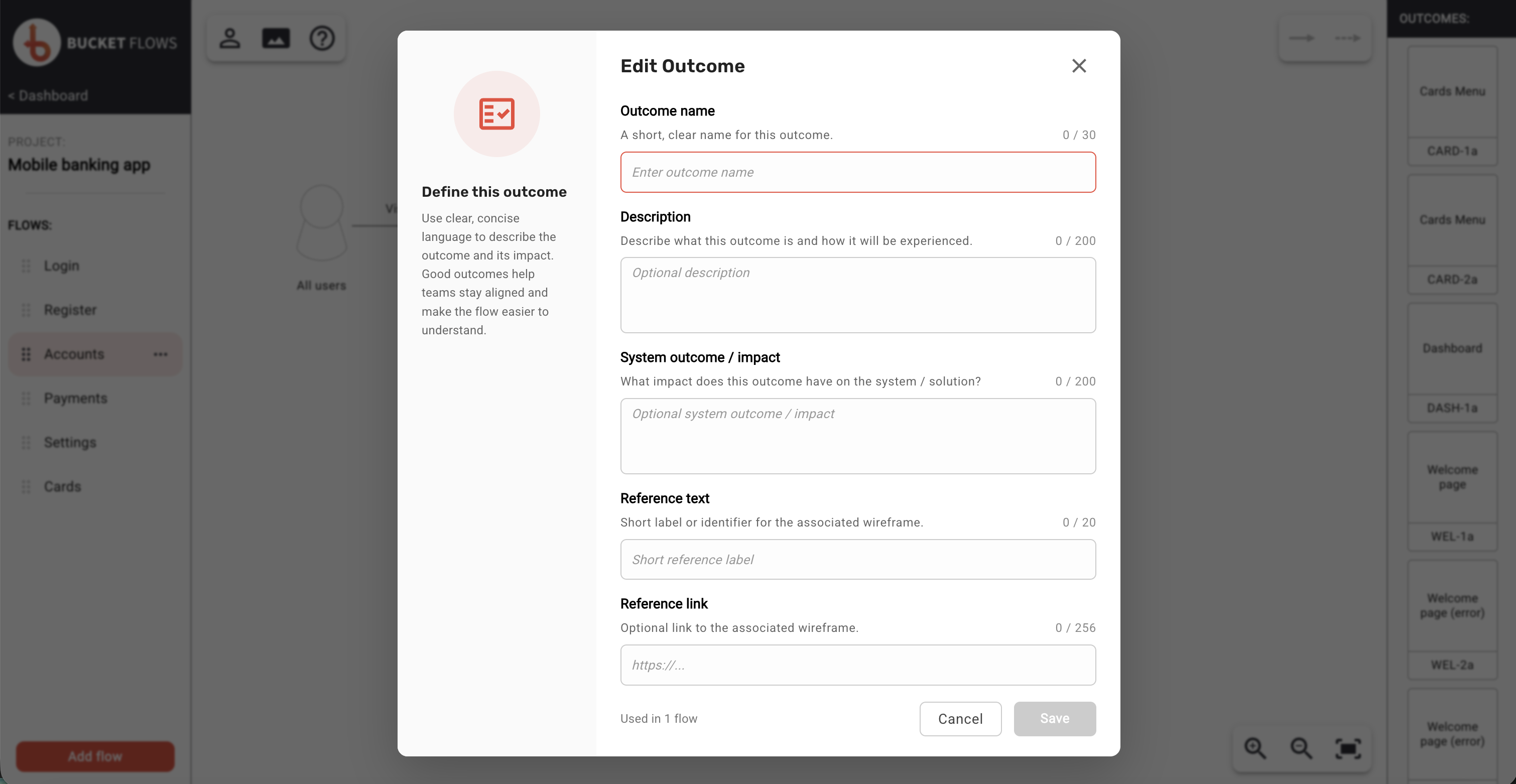
Editing a new outcome
Editing an existing outcome
Double-click a named outcome to update its details.
Outcomes can be reused in more than one flow. The bottom of the Edit Outcome window shows how many flows currently use the outcome. Hover over this information to see the flows where it is used.
Changes to a shared outcome are reflected everywhere that outcome is used, so check its usage before making changes.
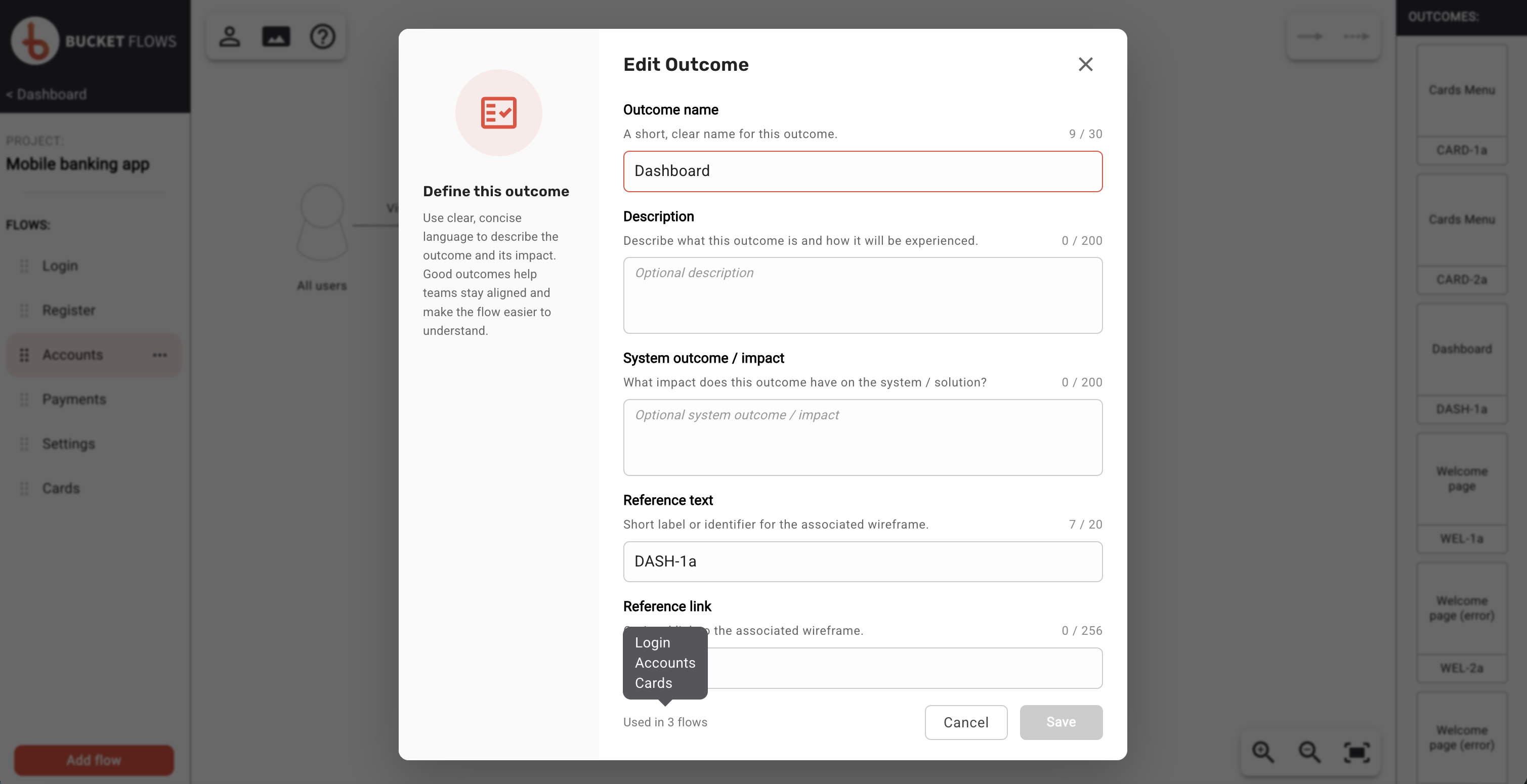
Editing an existing outcome
Reusing an existing outcome
Rather than creating another version of the same outcome, you can replace an outcome in the flow with one that already exists in the project.
Open the outcome menu and select Swap outcome, then choose the outcome you want to use.
The list shows the outcome name together with its reference text, making it easier to distinguish outcomes with similar names.
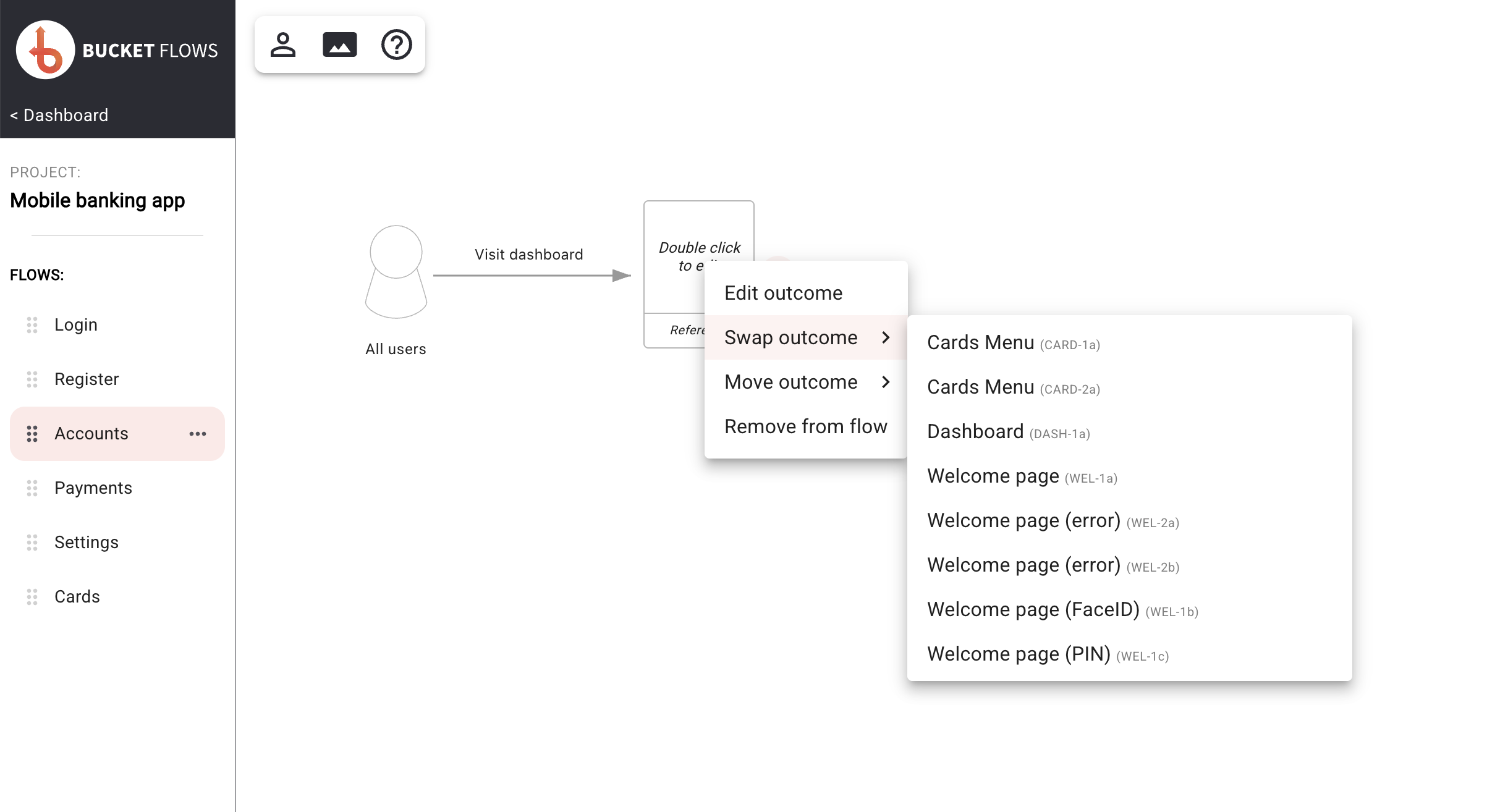
Swap outcome
Swapping to a new outcome
For a named outcome, the Swap outcome menu also includes New outcome.
Select New outcome when this point in the flow should no longer use the existing shared outcome and should instead have its own new outcome.
The new outcome is initially unnamed and can then be defined separately.
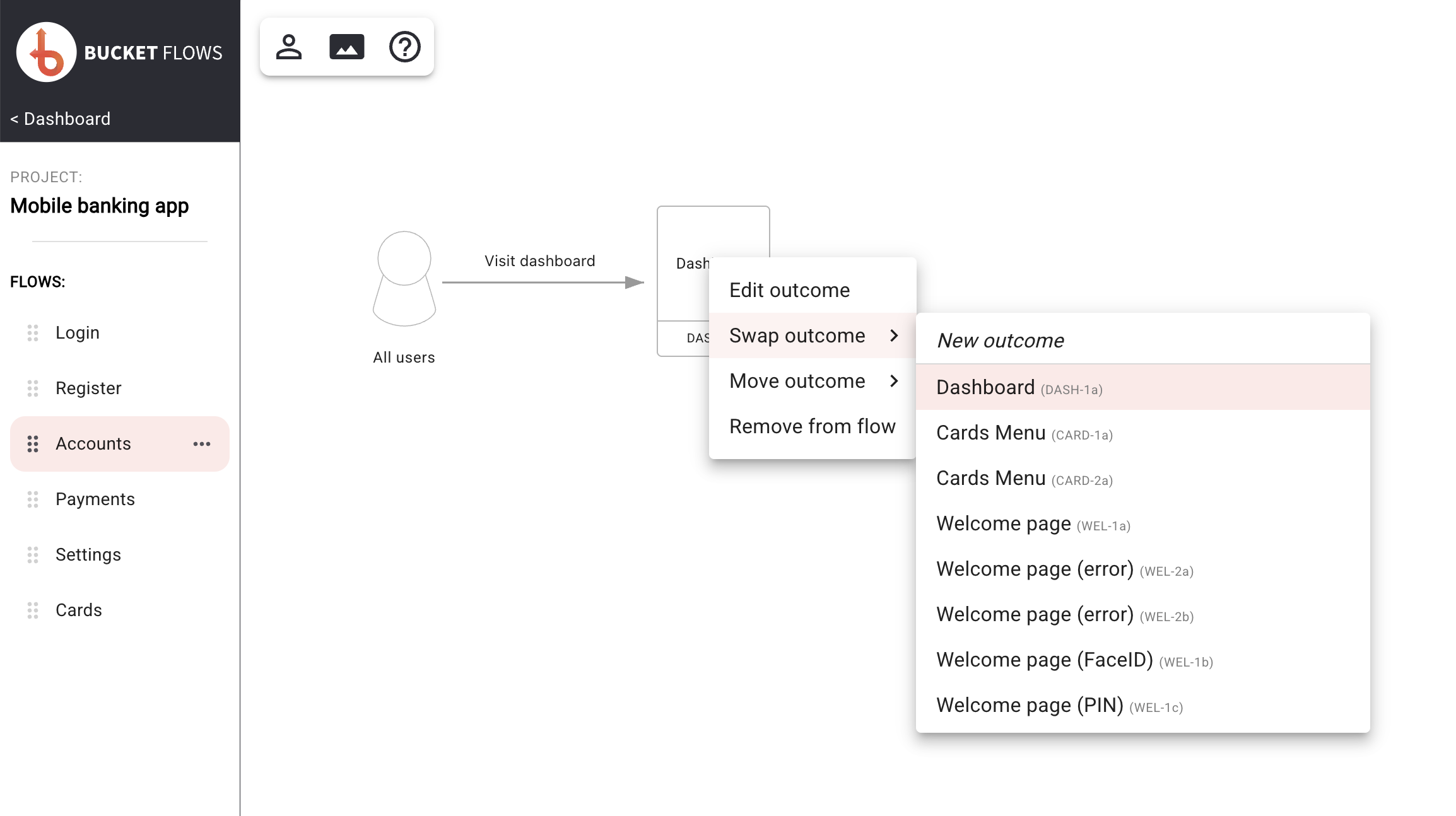
Swap to create a new outcome
Moving an outcome
Open the outcome menu and select Move outcome to change its position within the flow.
Depending on the current structure, the available options can include:
- Move up
- Move down
- Move left
- Move right
Options that are not valid for the current outcome are unavailable.
Moving an outcome changes its position within the flow but does not change the outcome itself.
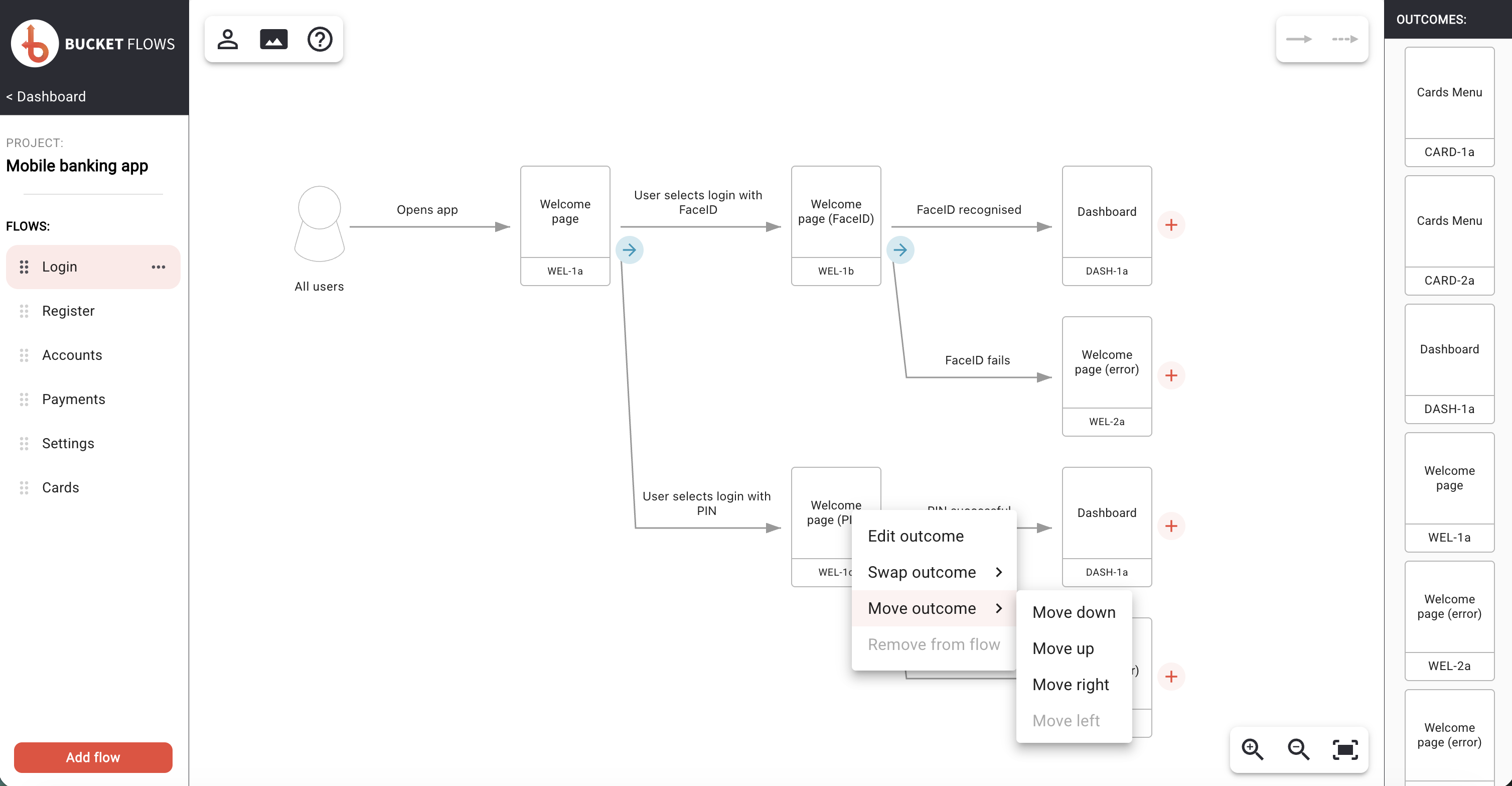
Move options
When outcomes need to be reordered
As a flow becomes more complex, adding another action can sometimes require existing outcomes to be repositioned so that actions do not cross over each other.
When this is required, Bucket Flows displays a Reorder Required message before making the change.
Select Yes, reorder to continue and allow Bucket Flows to reposition the affected outcomes, or Cancel to leave the flow unchanged.
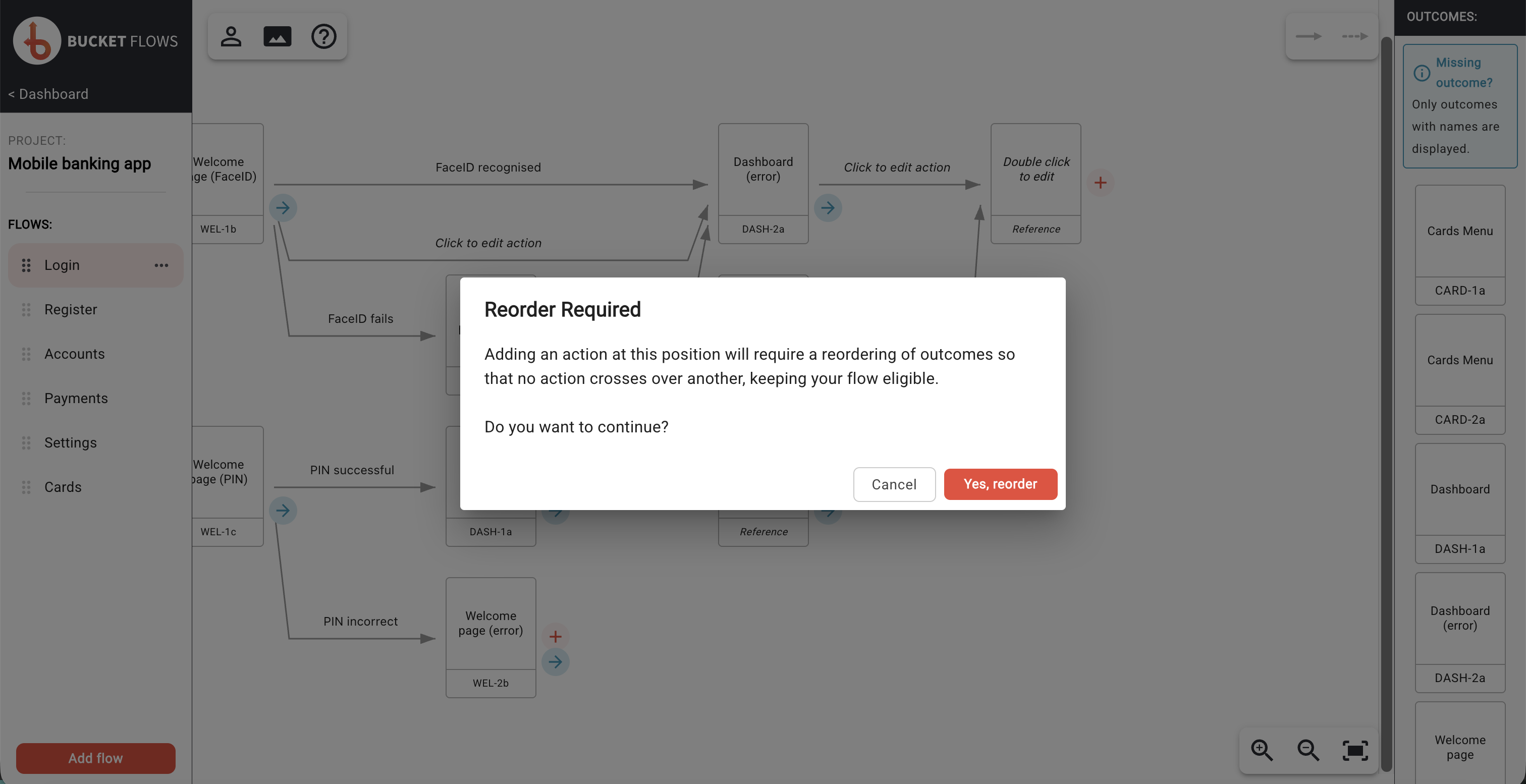
Reorder required
Removing an outcome from a flow
Open the outcome menu and select Remove from flow to remove an outcome from the current flow.
Where the flow continues through the outcome, Bucket Flows reconnects the surrounding actions where this can be done without changing the meaning or structure of other branches.
The option is unavailable where the outcome cannot be removed safely because of the way other actions connect to it.
Removing a named outcome from a flow does not remove the outcome from the project. It remains available for use in other flows.
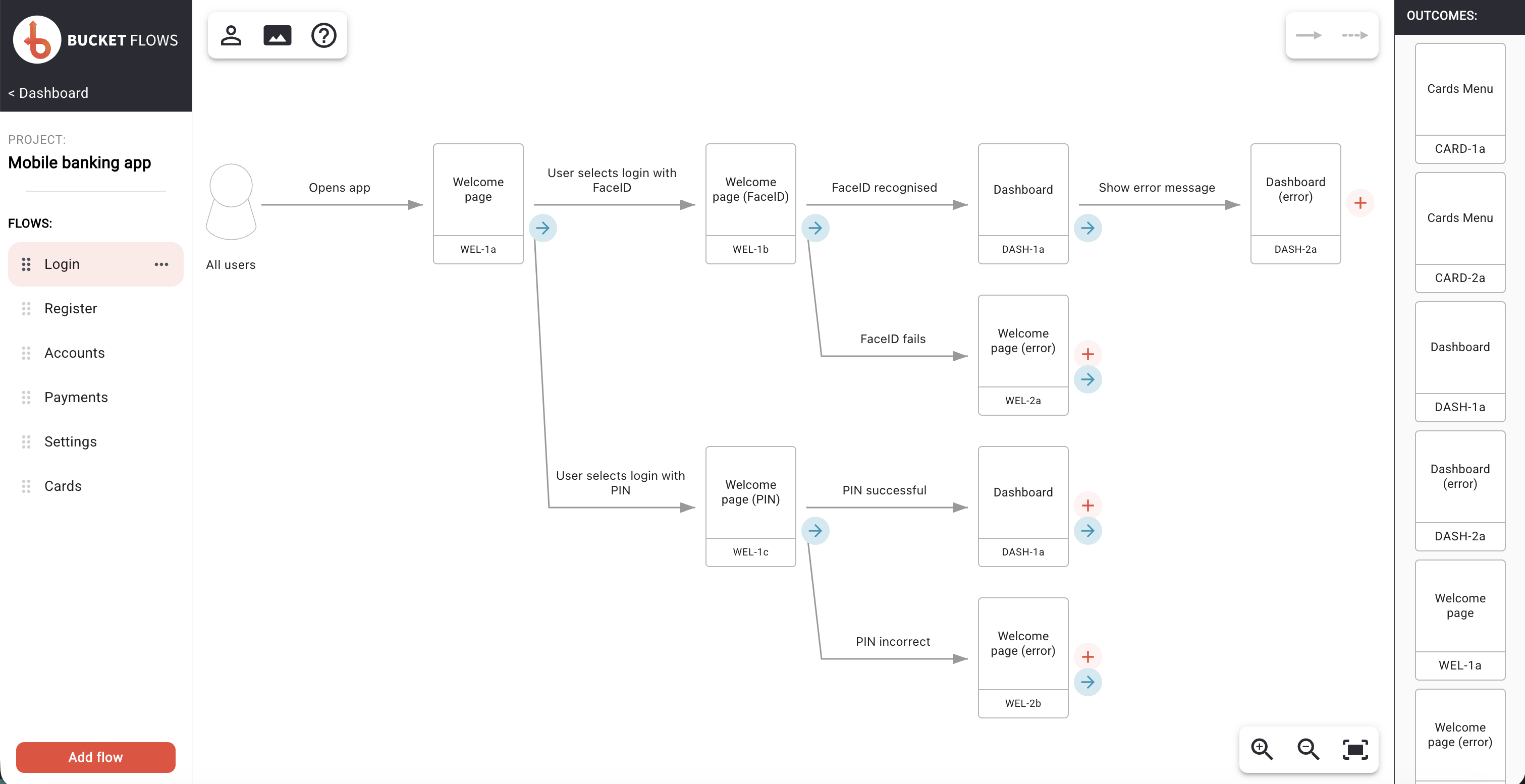
User selects to remove Dashboard (DASH-1a) from the flow
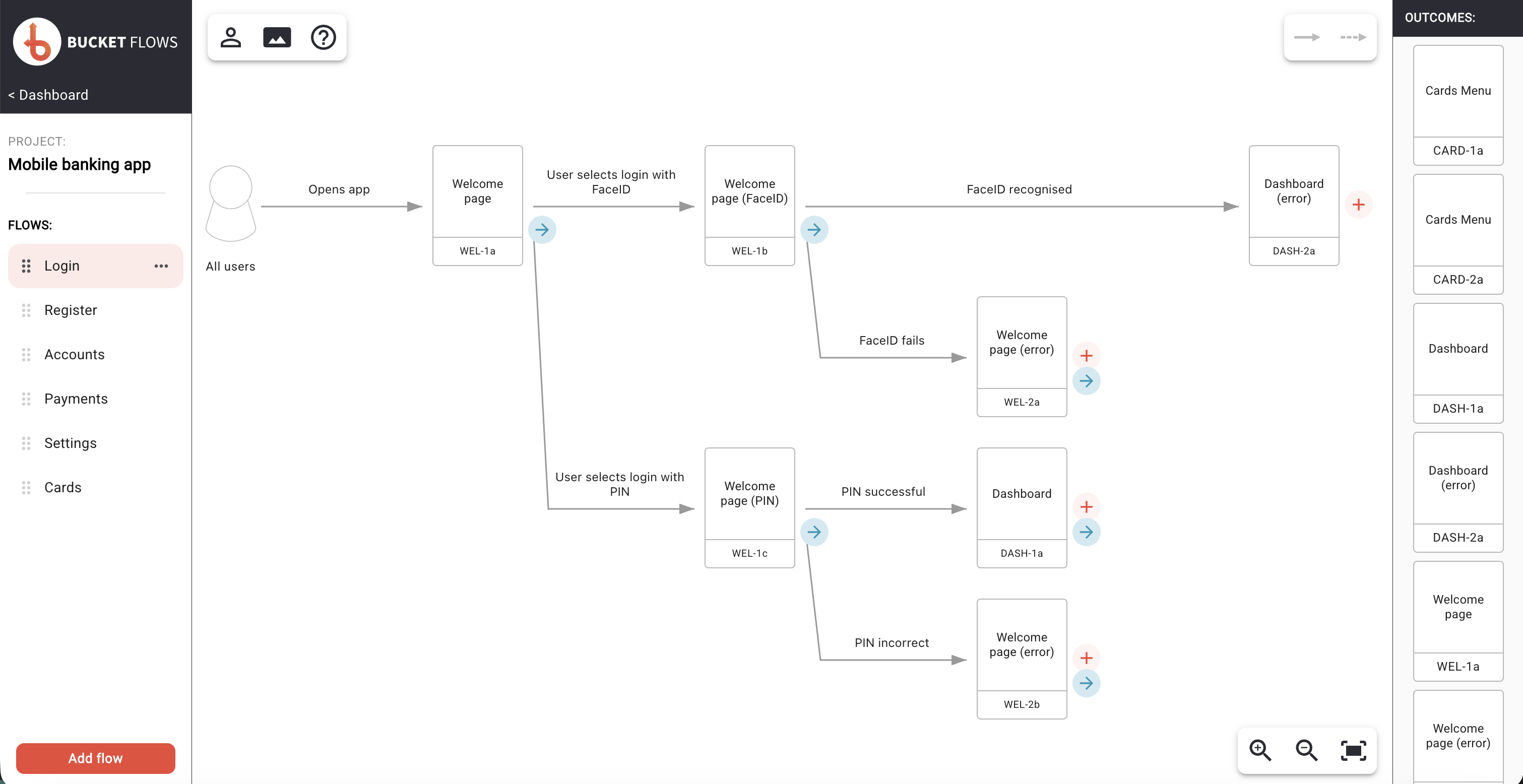
Outcome is removed and action is extended to next outcome
Updated 13 days ago