

Working with Actions
Actions represent the steps a user takes within a flow. They are shown as arrows connecting the persona and outcomes, with the action text displayed above the arrow.
Actions can be added in sequence or used to create different paths through a flow.
Adding the first action
For a new flow, select the + beside the persona to add the first action.
The first action connects the persona to a new outcome.
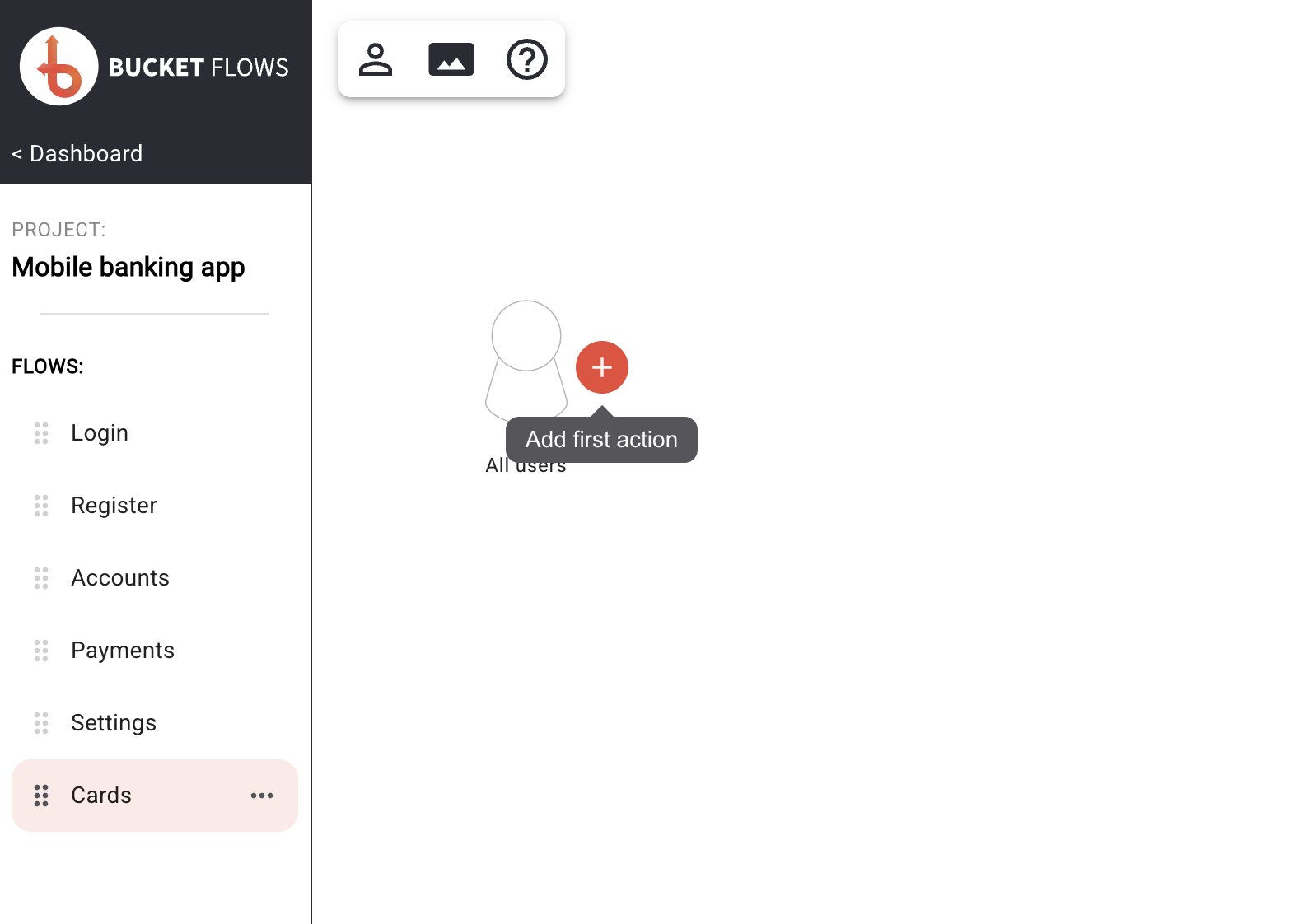
Add first action
Editing an action
Select the action text or arrow to edit the action.
Update the action text, then confirm the change to save it.
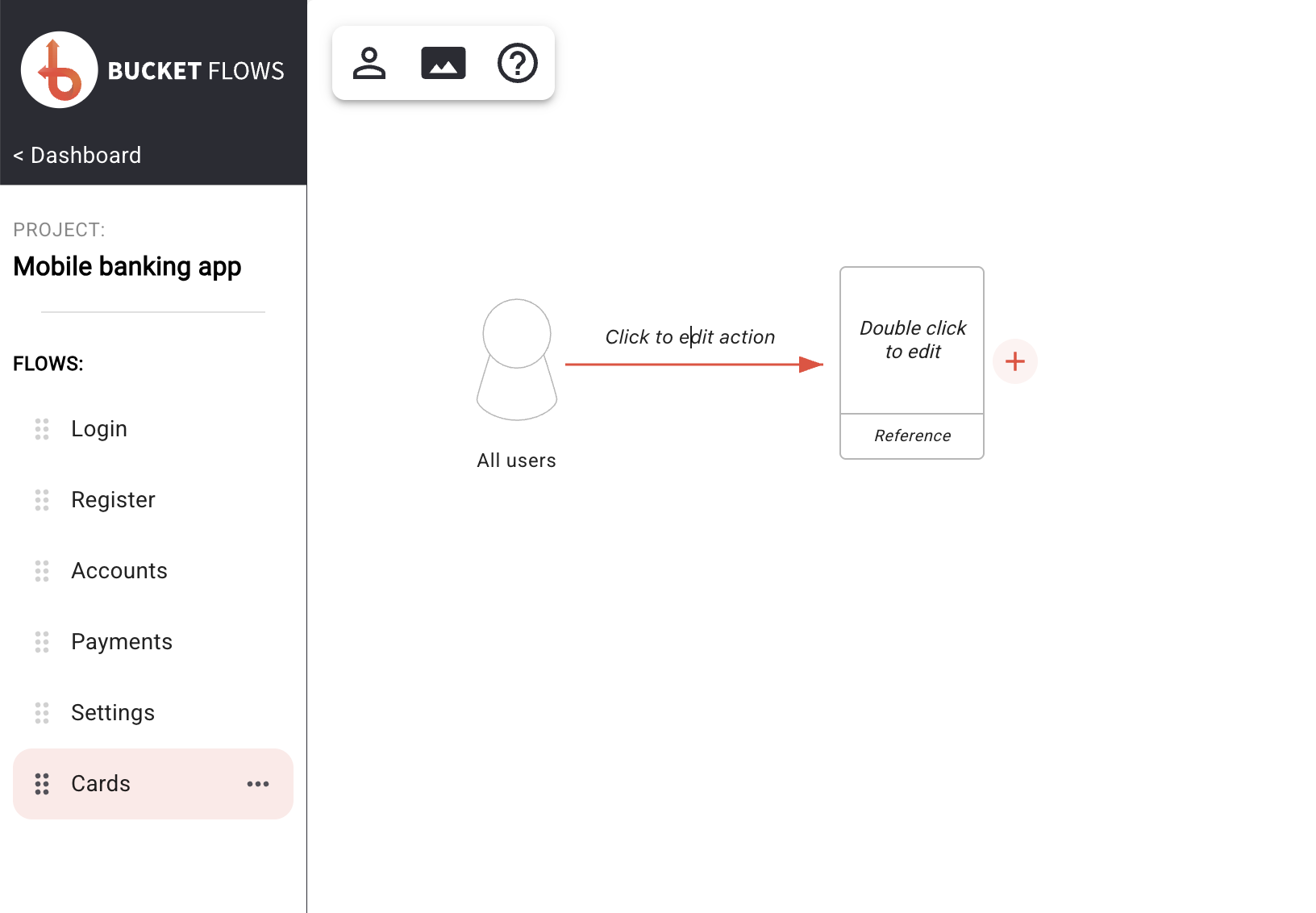
Click to edit action
Adding the next action
Select the + beside an outcome to continue the flow.
A new action and outcome are added after the existing outcome, allowing you to continue building the journey from left to right.
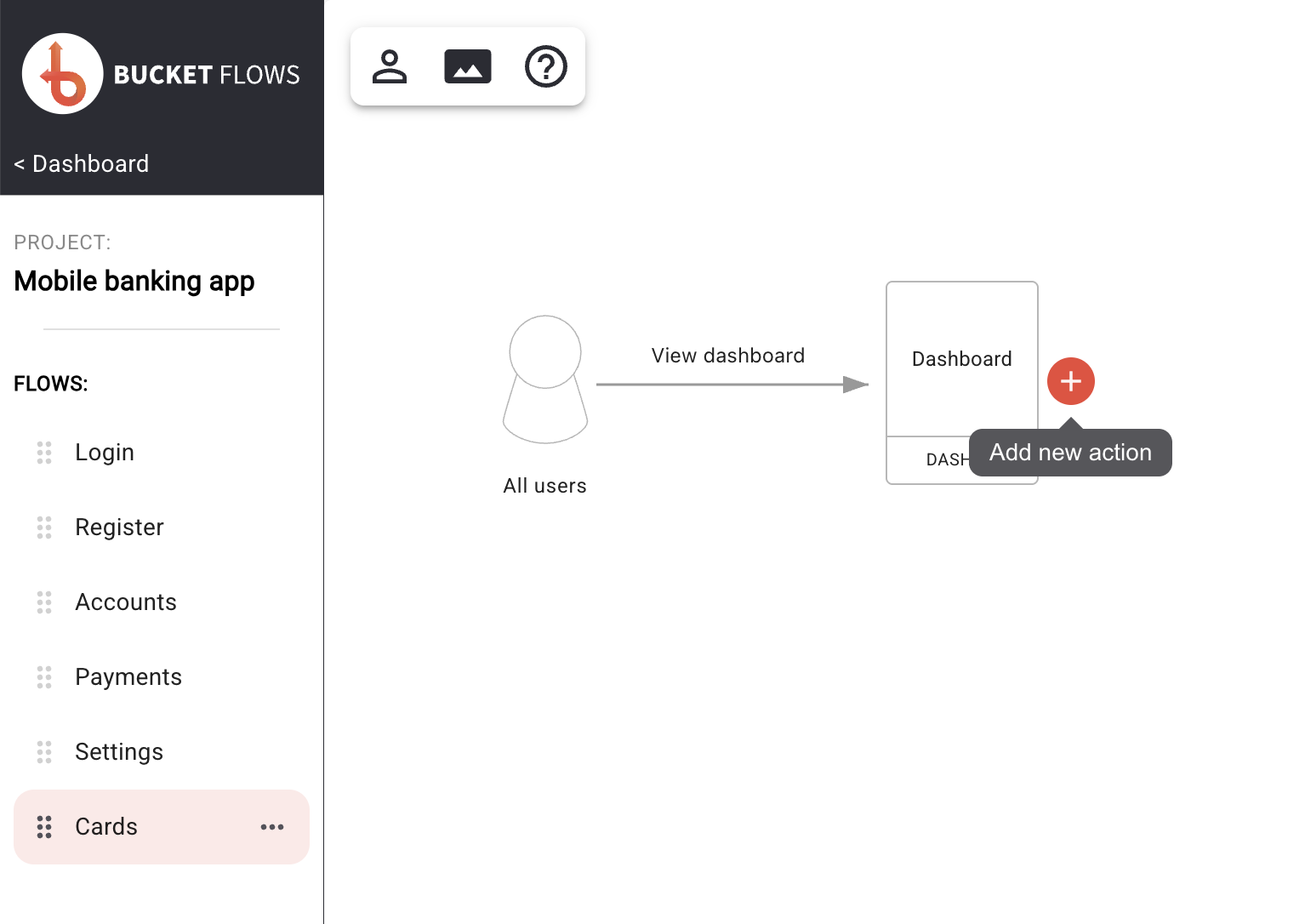
Add new action
Adding another branch
An outcome can lead to more than one action, allowing the flow to branch.
Use the Drag new action control and drag it to the position where you want the new branch to appear. A new action and outcome are created from the existing outcome.
This is useful when different actions can be taken from the same outcome.
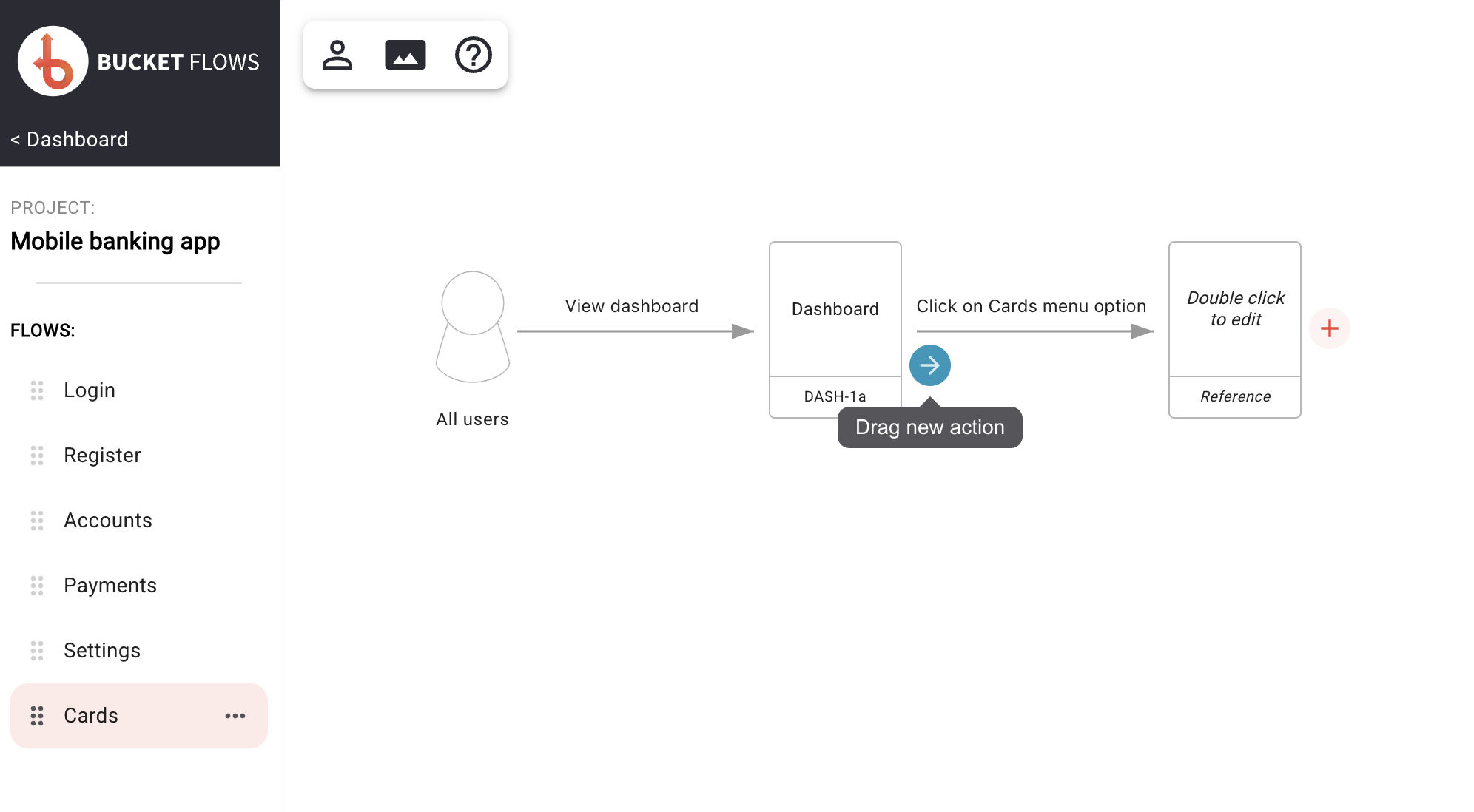
Drag new action
When you start dragging Bucket Flows will show you the valid positions where a drag can be performed.
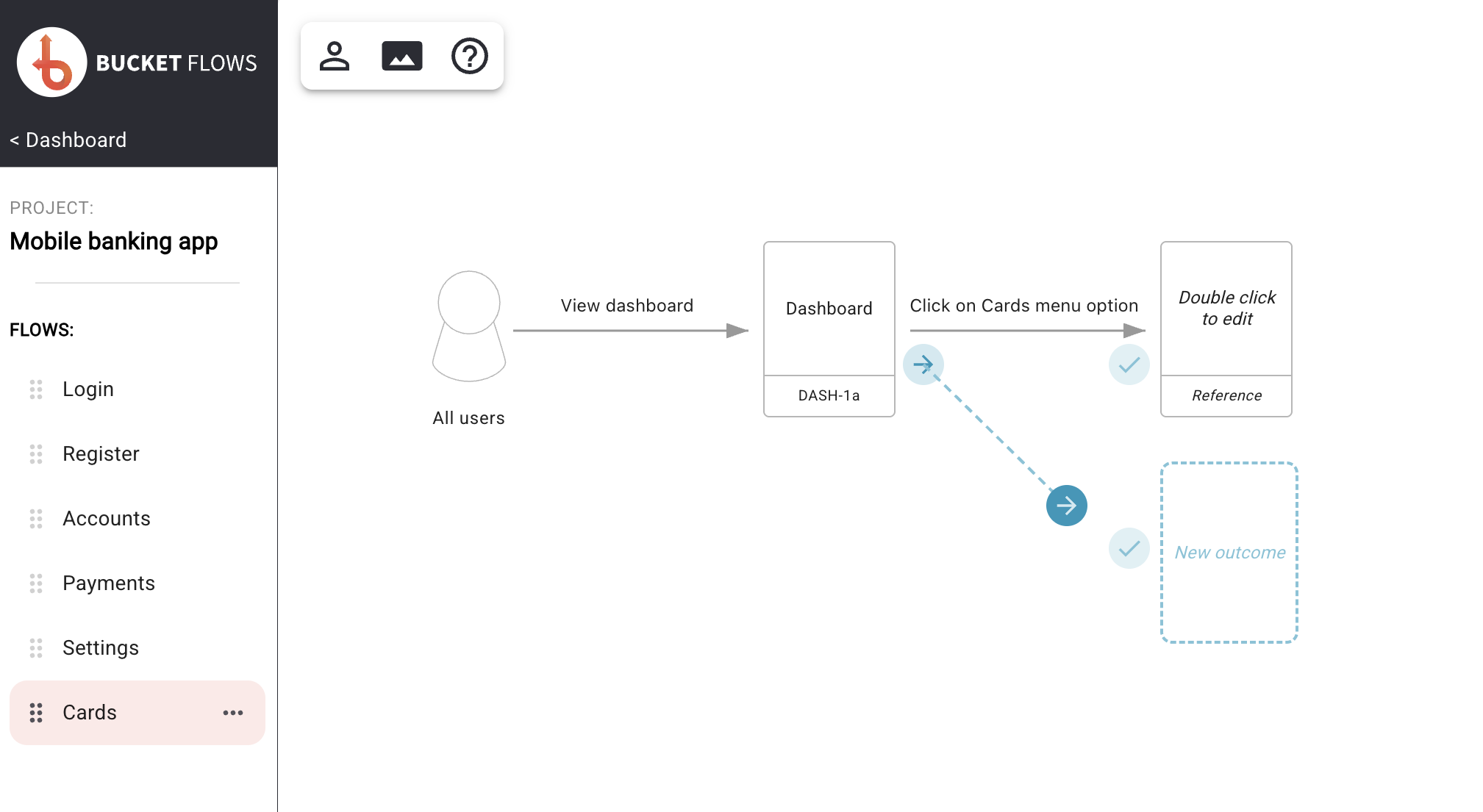
Drag options
Changing the action type
Bucket Flows supports two action types:
- Single Action represents an individual action and is displayed with a solid arrow.
- Action Series represents a series of actions grouped into a single step and is displayed with a dashed arrow.
Select the action and use the action type controls in the top-right of the canvas to change its type.
You can also open the action menu and select Change type.
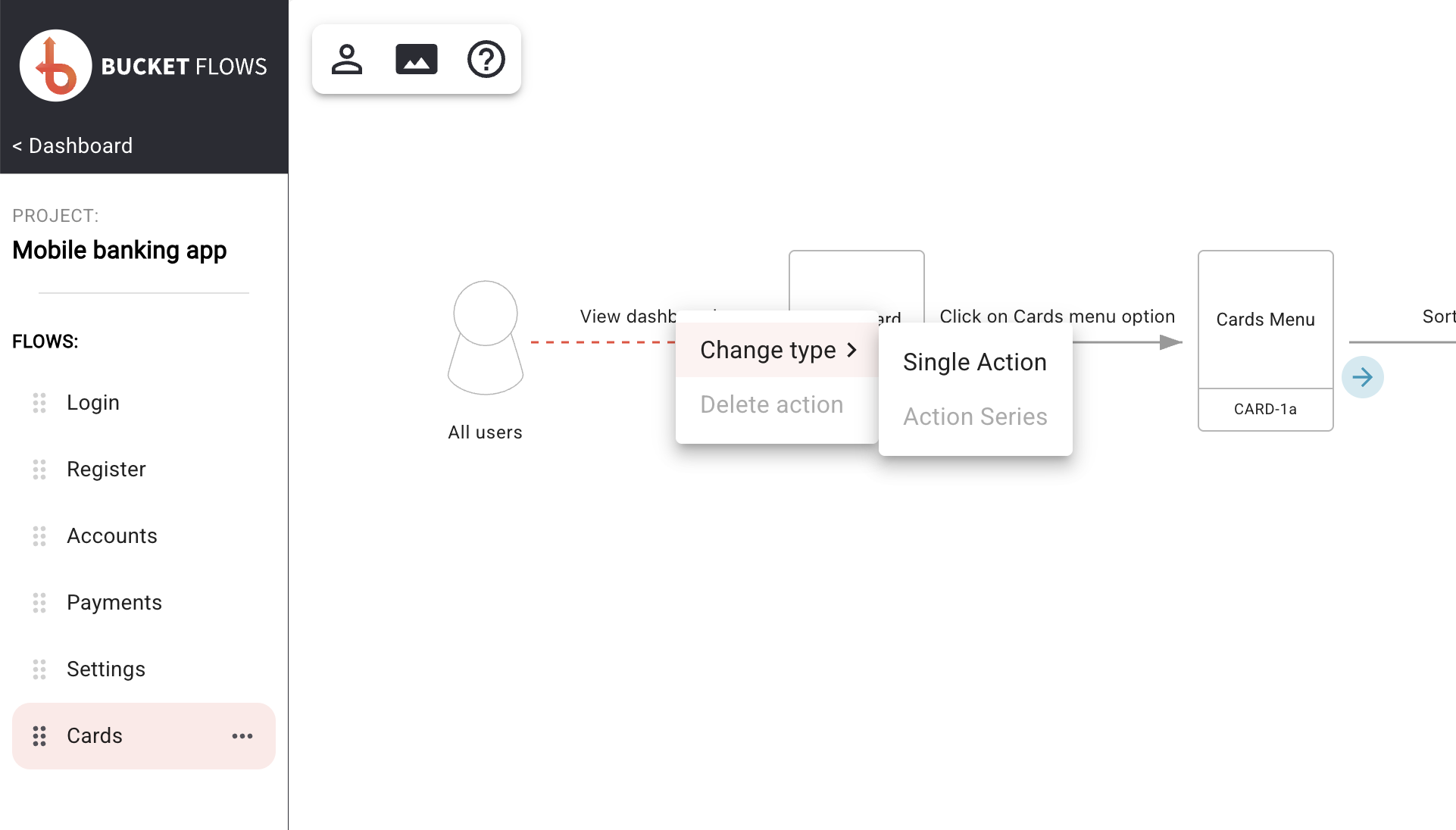
Action menu
Deleting an action
Select the action, open the action menu and select Delete action.
What happens next depends on how the outcome the action points to is connected within the flow.
Deleting an action with an unused outcome
When an action points to an outcome and there are no other actions pointing to that outcome or continuing from it, the action and its outcome are removed together.
Select Delete action to confirm.
Deleting an action cannot be undone.
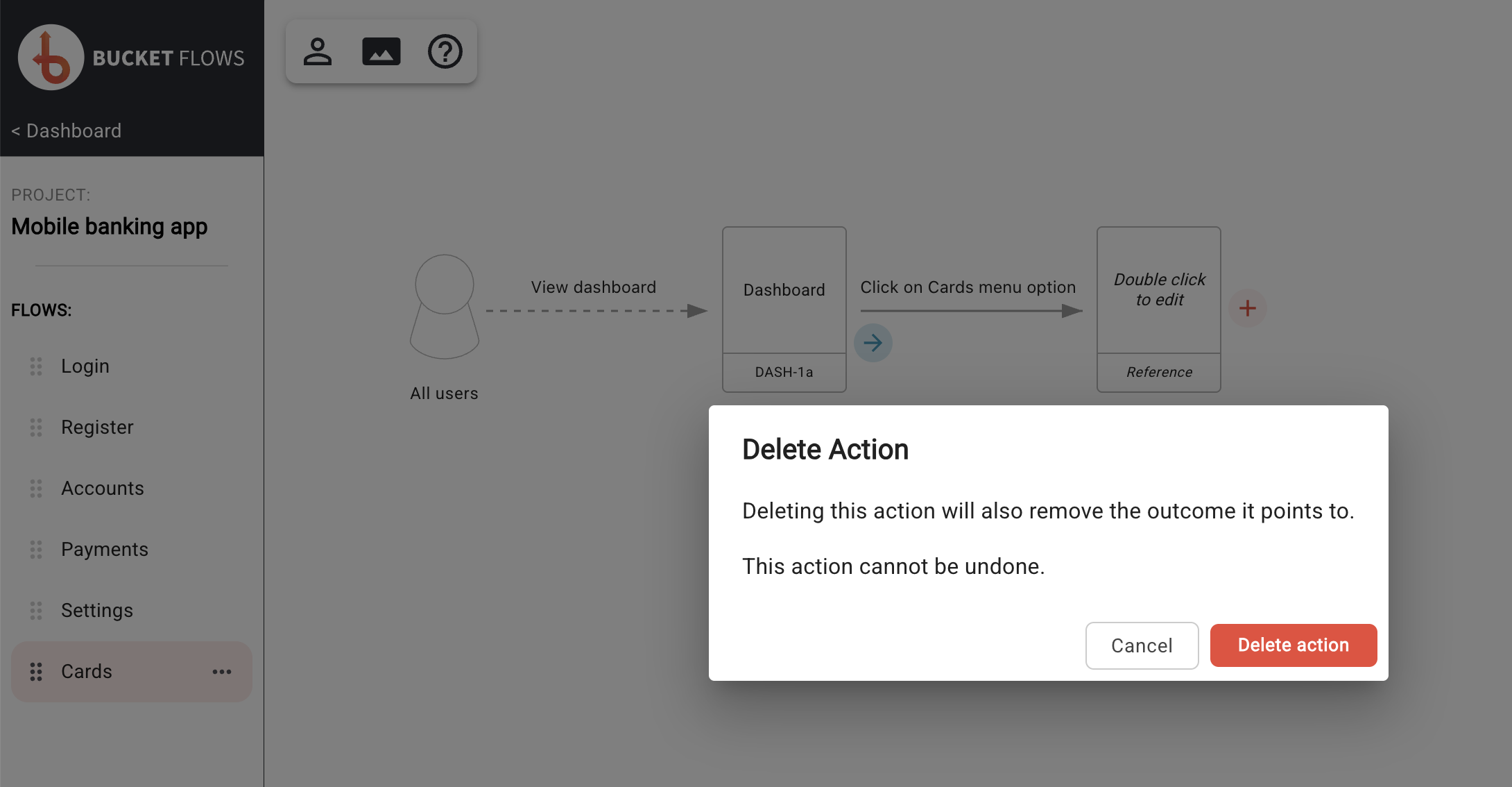
Delete action confirmation
Deleting an action where the flow continues
When there are further actions after the outcome, Bucket Flows asks how those subsequent actions and outcomes should be handled.
You can choose:
- Delete all orphaned outcomes — removes the outcome the action points to, then continues removing subsequent outcomes until it reaches an outcome that is also reached by another action.
- Shift future outcomes — removes the outcome the action points to and reconnects its subsequent actions to the previous outcome.
Select an option, then select Delete action.
Deleting an action cannot be undone.
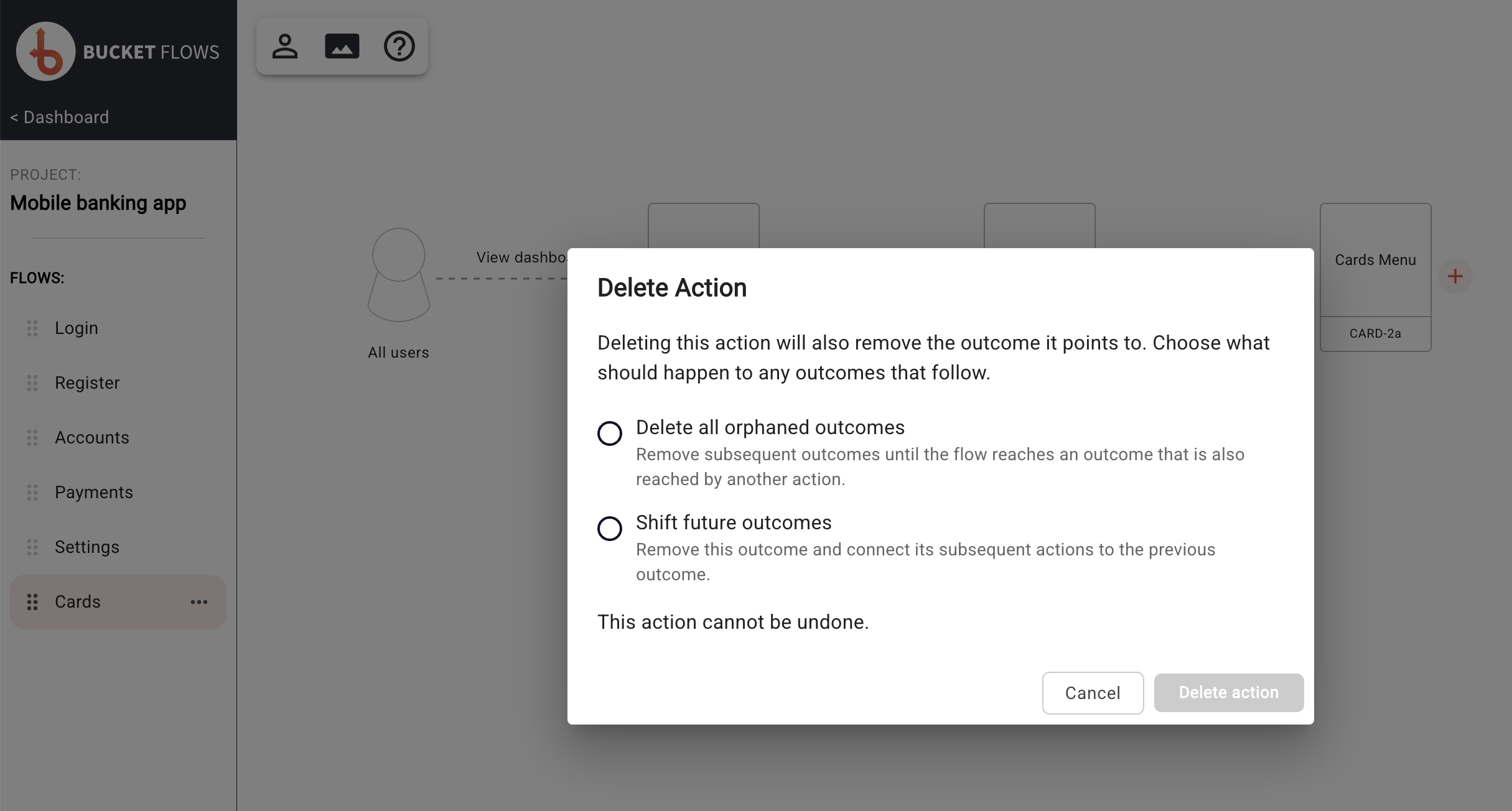
Delete action options
Deleting an action that points to a shared outcome
When the action you are deleting points to an outcome that another action also points to, only the selected action is removed.
Updated 14 days ago