

Flows sidebar
The Flows sidebar is used to manage the flows within a project. From here you can add new flows, update existing flows, delete flows and change the order in which they appear.
Adding a flow
Select Add flow at the bottom of the sidebar.
Enter a Flow name of up to 30 characters. You can also add an optional Description of up to 200 characters to provide more context about the flow.
Select Add flow to create the flow.
The new flow is added to the sidebar and opened on the canvas.
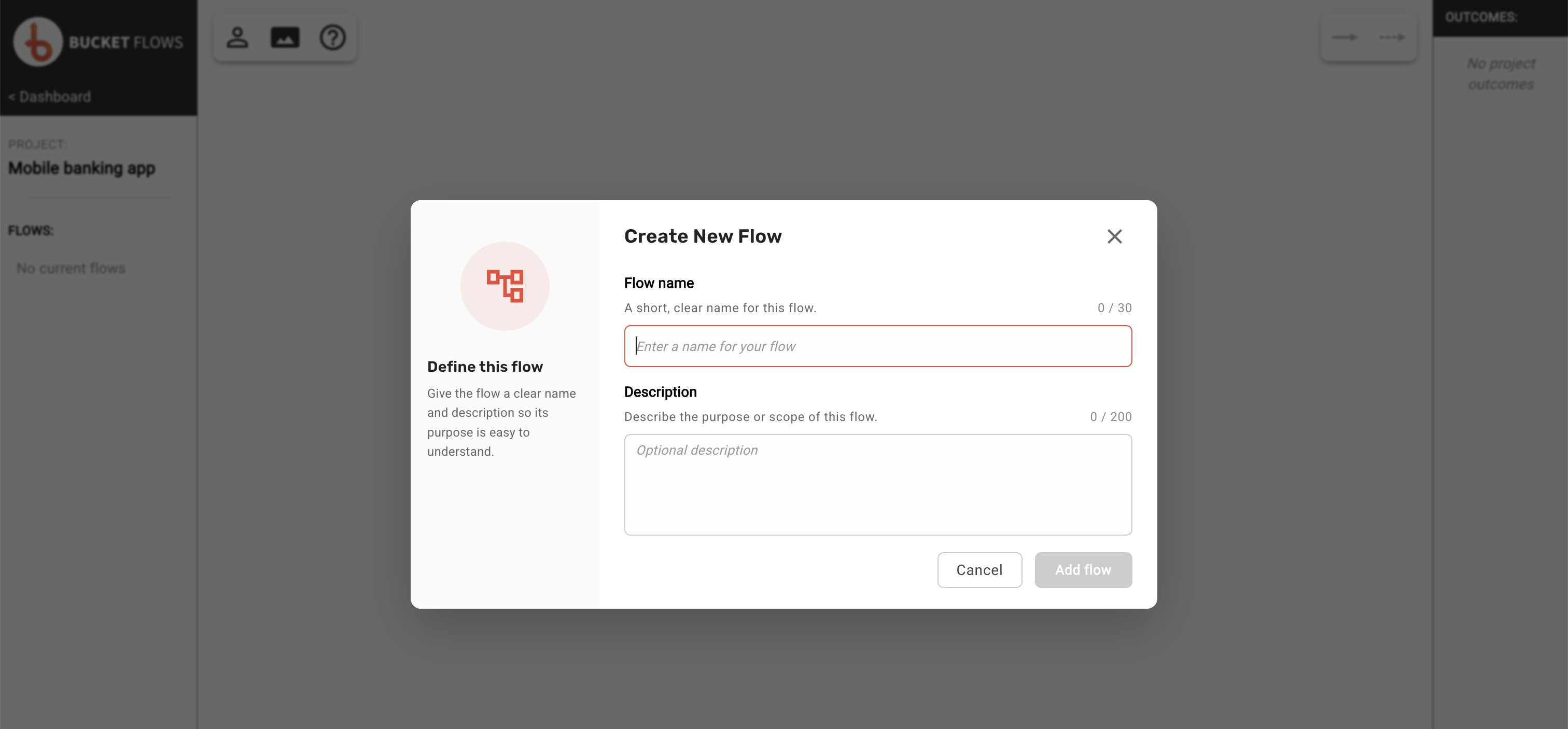
Create new flow
Editing a flow
Open the three-dot menu beside the flow and select Rename.
You can update the flow name and description. The same character limits apply as when creating a flow:
- Flow name: up to 30 characters
- Description: up to 200 characters
Save the changes when finished.
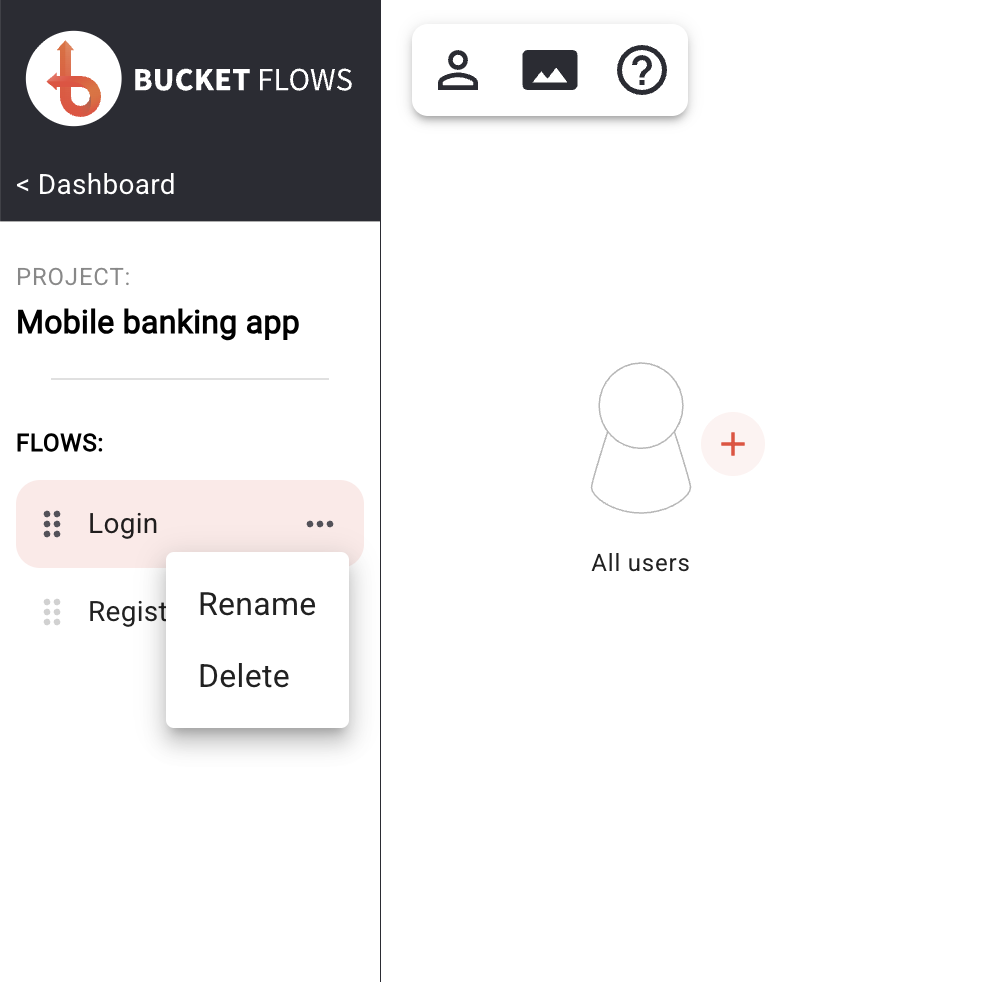
Flow menu
Deleting a flow
Open the three-dot menu beside the flow and select Delete.
A confirmation message shows the name of the flow that will be deleted. Select Delete to permanently remove it, or Cancel to leave it unchanged.
Deleting a flow cannot be undone.
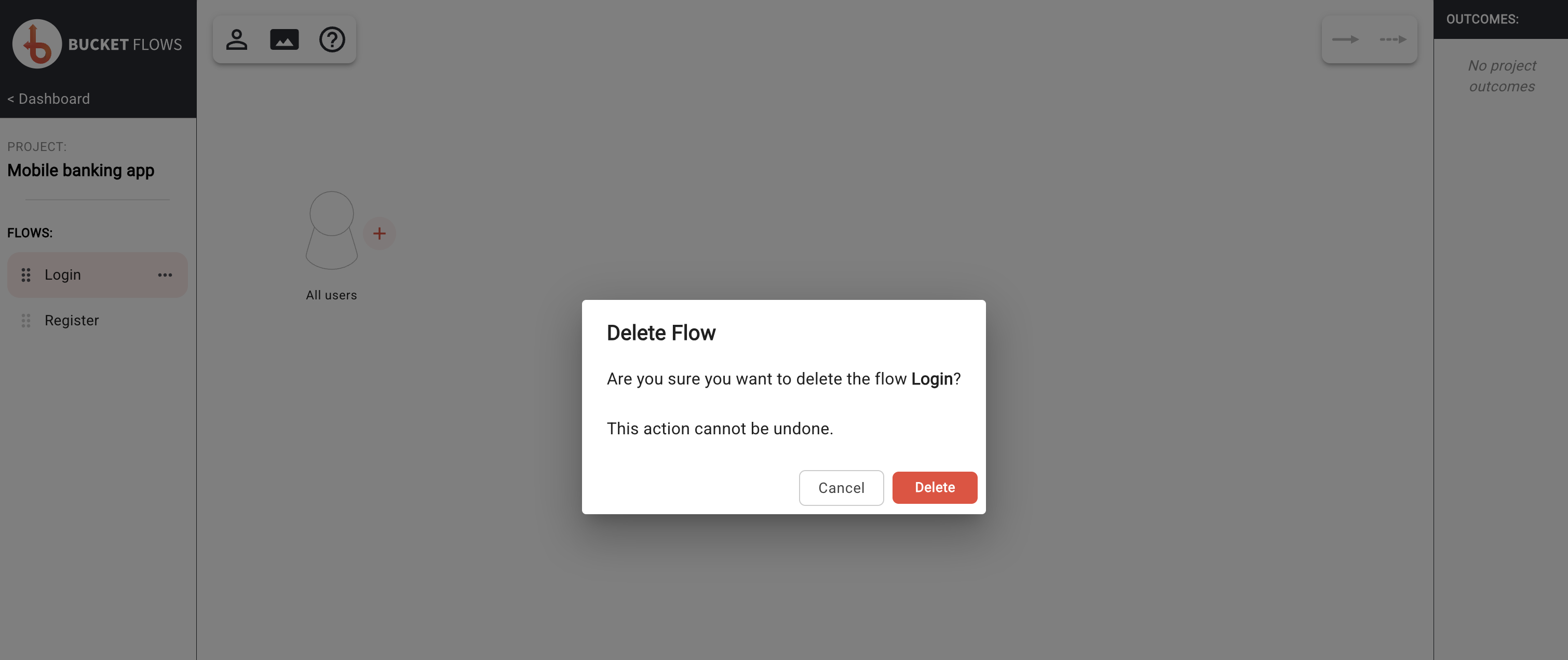
Delete flow confirmation
Selecting a flow
Select a flow in the sidebar to open it on the canvas.
The currently selected flow is highlighted in the sidebar.
Changing the flow order
Drag a flow using the handle beside its name and drop it into the required position in the sidebar.
The order shown in the sidebar is also used when flows are displayed in View Mode and when PDFs are generated. Reordering the flows therefore changes the sequence in which they are presented in both places.
The new order is saved automatically.
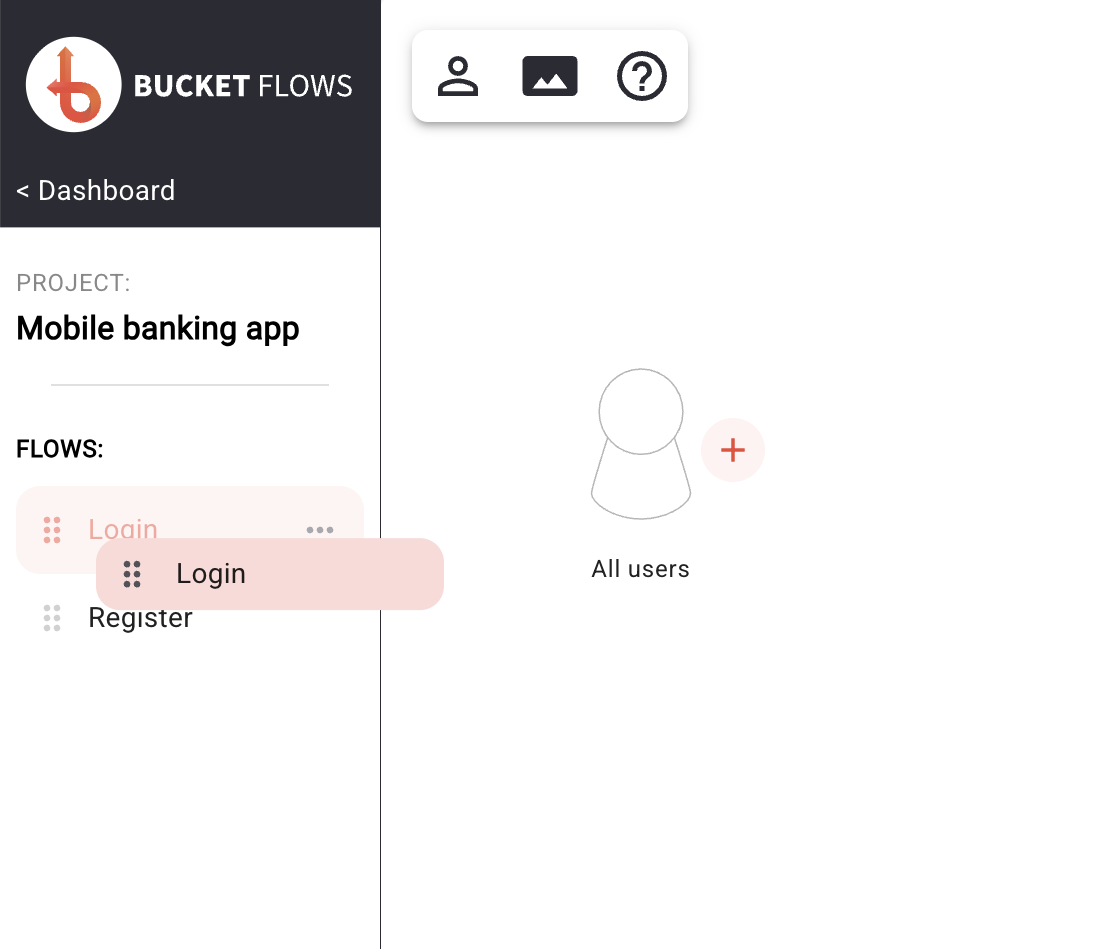
Drag a flow
Updated 15 days ago